How to Broadcast Game Streaming in Beam Windows 10 Creators Update - Creators Update brings many new features to the PC or laptop Windows 10. And - of course - among the many new features, the most awaited for the gamers is Game Mode. Microsoft claims that the Game Mode feature will provide improved performance as well as "overall game consistency" when playing. Microsoft also seems to plan to put investment in Game Mode features in an effort to make it better in the future.
In addition to Game Mode, Creators Update also introduced a new streaming service for a game called Beam, which will be an alternative to Twitch or YouTube Gaming. So for maniac game mates can now use a new platform for streaming when playing games.
Just like Game Mode, you can easily access live streaming settings via Game Bar (the broadcast icon is shaped like a parabolic antenna).
Microsoft has also updated the feature to support more titles in the Game Bar. Although the full list is not available, they say it will be more compatible with "more than 80 most popular PC games." In addition, you can also change the settings for Game Bar to automatically appear in games that support it.
Before you start a streaming broadcast, you can change some settings. Some of them are set the position where the camera window is placed while playing, and activate the microphone. You can also choose whether you will capture a particular game image or the entire desktop. You can stream live even if you do not have a Beam account.
In addition to Beam and Game Mode settings, you can also use other settings sections to customize the shortcuts of various functions with this Game Bar. If you want to record gameplay, you can also adjust the DVR settings which include overall audio quality, maximum recording length, and quality level and video frame rate.
All new features related to the above mentioned games can be found in the Gaming section of the same Settings menu.
Well, in this article we will explore thoroughly all the new features above, especially how to set broadcast / broadcast for streaming.
How to stream games in Windows 10 Creators Update?
With Windows 10 Creators Update, broadcasting games on Beam from PC is now easier than ever. Instead of using third party software, now there is already a built-in tool for streaming games. You just need to do these 3 steps to start streaming: go into some apps, open and start playing games, and click to start broadcasting.
How to set up the broadcast for the first time
First, you need to ensure the privacy settings for you to be allowed to broadcast from PC. By default, broadcasting has been set to "allowed", but you must check it for sure.
- Open the browser, click the Xbox user settings page.
- Type in your Xbox username, then click Next.
- Type your password and click Sign in.
- Scroll to the Xbox One / Windows 10 Online Safety tab.
- Click the Allow button in the Broadcast Gameplay section (scroll down below to find it). Then click Save.
After the privacy settings are saved, we are now stepping into the following preparations.
- Launch Xbox app.
- Click on Let's play! To sign-in.
- Launch the game or app you want to broadcast.
- If the game is already open, or you've started playing, press the Windows + G shortcut key to open the Game Bar. Or you can also press the Xbox button if you use a gamepad, or a controller.
- Click the Broadcast button.
A broadcast preparation window will open which contains a set of settings for future broadcasts.
- Click Start broadcast when you're ready!
How to Change the overlay of broadcast settings
This new broadcast setup overlay gives you the ability to quickly tweak the stream before it goes live.
Click the column under the Broadcasting window to switch between the game's only broadcast or the whole desktop broadcast.
Change what is broadcast
Click the checkbox next to Camera on to include a photo of yourself in the broadcast. This setting can also be set when you start broadcasting.
Slide your camera position
You can move the camera window around the broadcast window by clicking on the column under Camera Position. There is no dropdown menu here, so just keep clicking until the camera window is in the right place. You can choose one from:
Bottom left
Lower middle
Bottom right
Middle right
Top right
Middle up
Top left
Left center
Move frame of camera
- Click on the checkbox in the Microphone on so your voice can be heard. This setting can also be ON when it starts broadcasting.
- Click More in Windows settings to find more broadcast options.
Change the overlay settings of the live event
A small window containing your broadcast preview will appear in the game you are playing when you 'live'.
- The pause button will pause the broadcast.
- The stop button will end the broadcast and will completely close the whole broadcast.
- Microphone button will enable or disable the microphone. You can disable it when there is a small X on it.
- The camera button will turn the camera on or off. You can disable it when there is a small X on it.
- Click and drag the move button to place overlays anywhere in the game screen window. It is important that the overlay does not interfere with your playing preoccupation.
Change Windows broadcast settings
You can meet broadcast settings in Windows 10 in two ways; In the standard Windows Settings menu, or through a Bar Bar show broadcast overlay by clicking More on Windows settings. Here we will demonstrate the previous method.
- Go to the Settings menu.
- Click Gaming.
- Click Broadcasting.
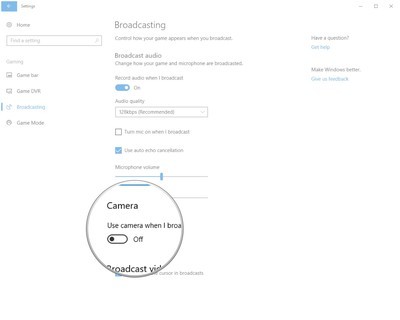
Here you'll find a set of additional performance settings to help make the best possible streaming.
- Click the button below the Audio Record when I broadcast to allow your friends to hear the game audio.
- Click the dropdown arrow under the Audio Record when I broadcast and click audio quality. The recommended option is good enough audio (128 Kbps), but there is also an option for lower or higher quality.
- Microphones and cameras can be enabled and disabled while streaming, but you may want to let auto echo cancellation be enabled. This reduces the audio loop that will make viewers turn off the broadcast in a hurry.
- Click and drag the slider to adjust game volume and microphone volume.
- Click the button under "Use camera when I broadcast" if you want to insert your pictures into the stream.
- Click the dropdown arrow next to Camera and click the camera if you have more than one option.
- Click the checkbox next to Capture mouse cursor in broadcasts to bring up the mouse cursor to appear in the stream.
Do not forget to share to your friends let me know how to stream in windows 10